
How to use vertical tabs in Safari on macOS and iPadOS 27
Learn how to switch to vertical browser tabs instead of the horizontal top tab row on your iPhone, iPad, and Mac running the latest version of iOS 27, iPadOS 27, and macOS 27 Golden Gate.
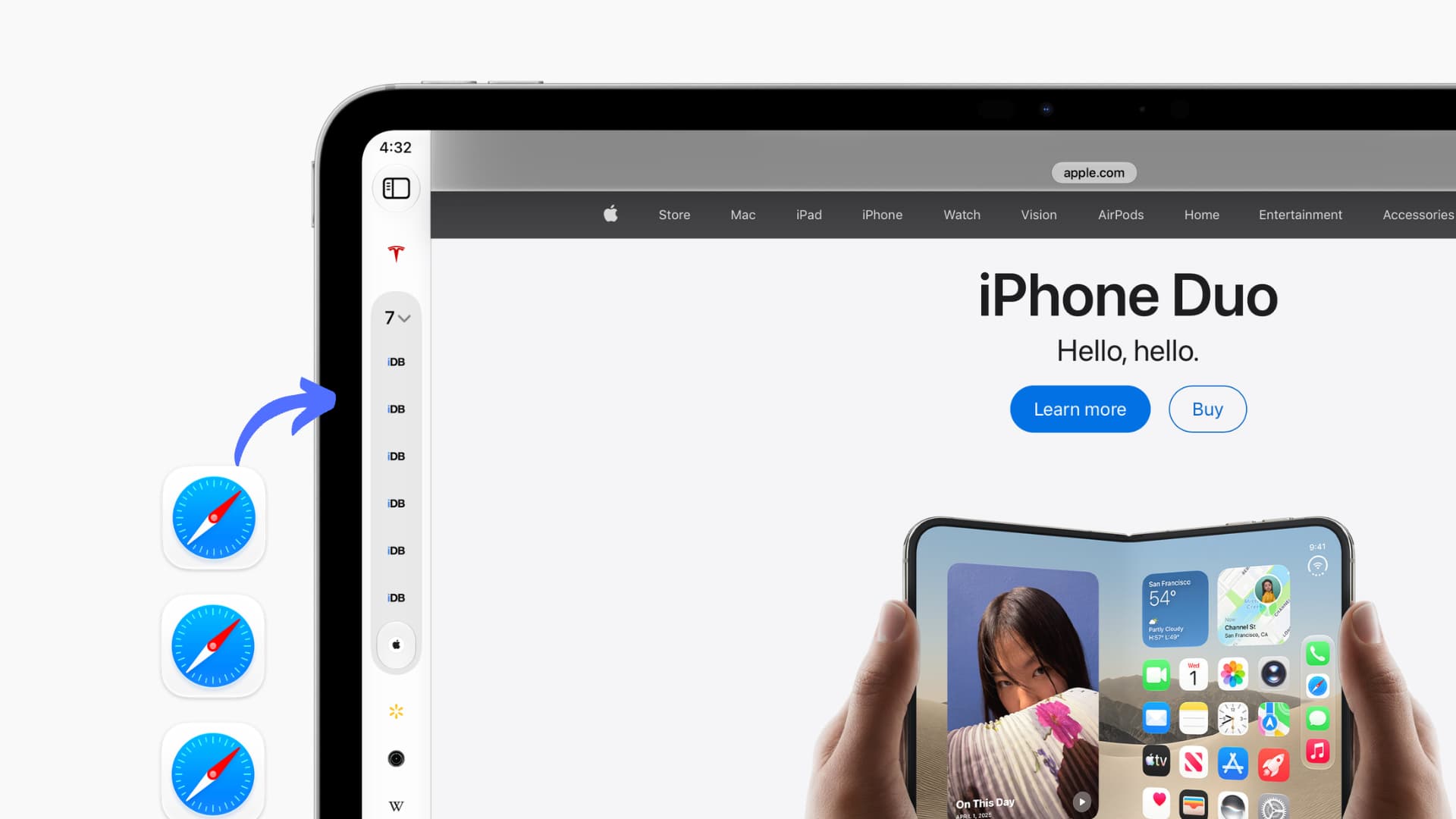
If you have never heard of or used vertical tabs, it’s basically moving the horizontal row of open browser tabs from the top of the screen to a vertical layout on the left side. Unlike top tabs, which always show the tab name (or part of it if you have several tabs), vertical tabs show only the site icon (favicon) to take up minimal space.
Vertical browser tabs aren’t new. Vivaldi added it back in 2016, and Microsoft Edge added it in 2021. But it was Arc that popularised it among a tech-savvy Twitter audience starting in 2022. Soon after, Brave, Firefox, and Google Chrome all added it in the coming years. Finally, with the latest update, Apple has joined the team by adding vertical tabs to Safari.
Safari vertical tabs show all your open individual tabs and tab topics (a new OS 27 feature where Apple Intelligence groups your tabs into topics) on the left side of the screen. As a result, websites have a bit less left-to-right space to show actual content.
Supported devices
Vertical tabs in Safari are supported on the following devices:
- iPhone Duo running iOS 27.3 or later
- iPad running iPadOS 27.3 or later (both vertical and portrait orientations)
- Mac running macOS 27.3 or later
As of writing, all the above software versions are in beta, with a public release expected in the next few weeks.
Given the small screen width, Safari doesn’t offer vertical tabs on bar iPhones (even when rotated to landscape).
Enable vertical tabs in Safari
You can turn it on in Safari settings on each device individually.
iPad
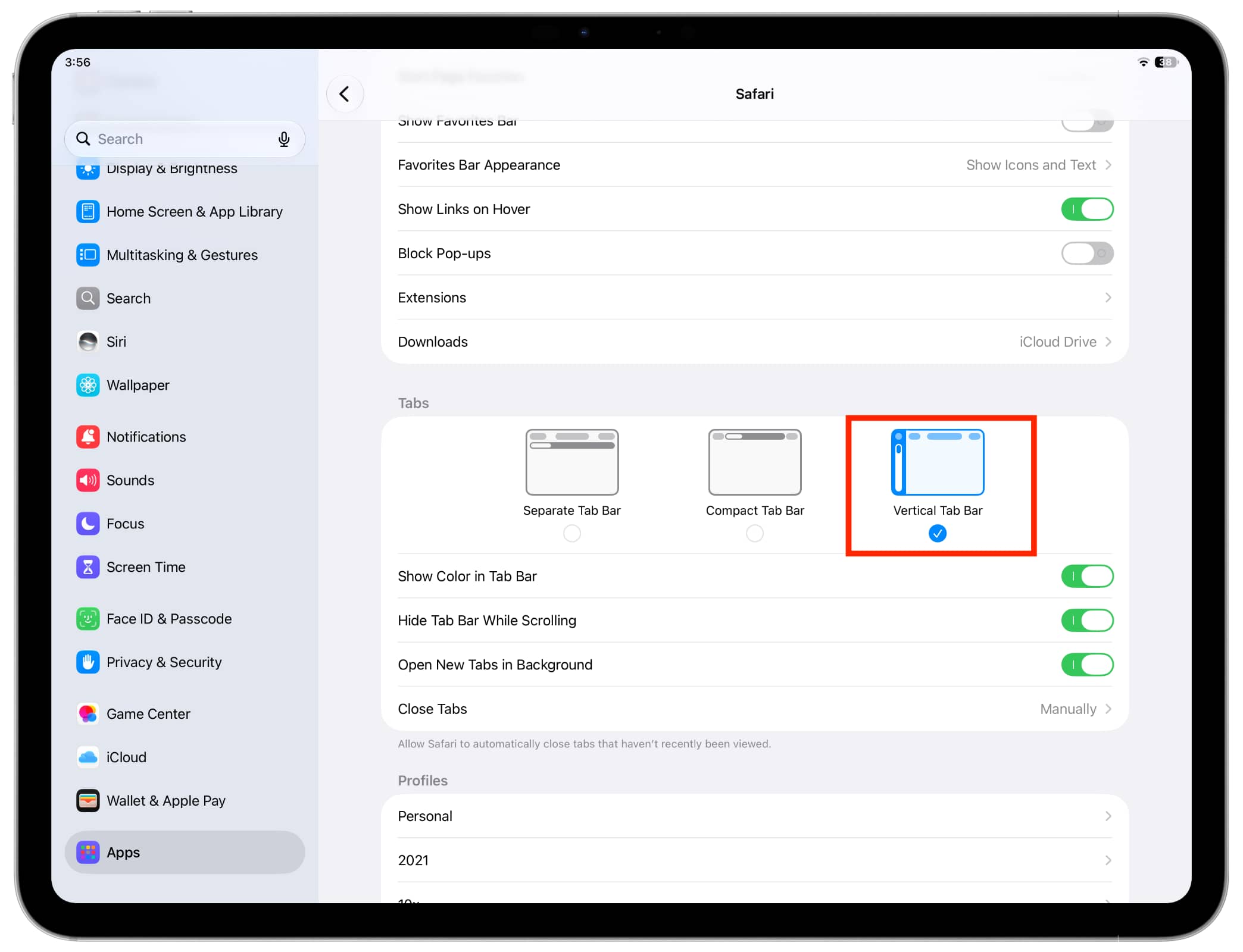
- Update your device to iPadOS 27.3 or later.
- Open the Settings app.
- Scroll to the bottom and tap Apps.
- Select Safari from the list of applications.
- Choose Vertical Tab Bar.
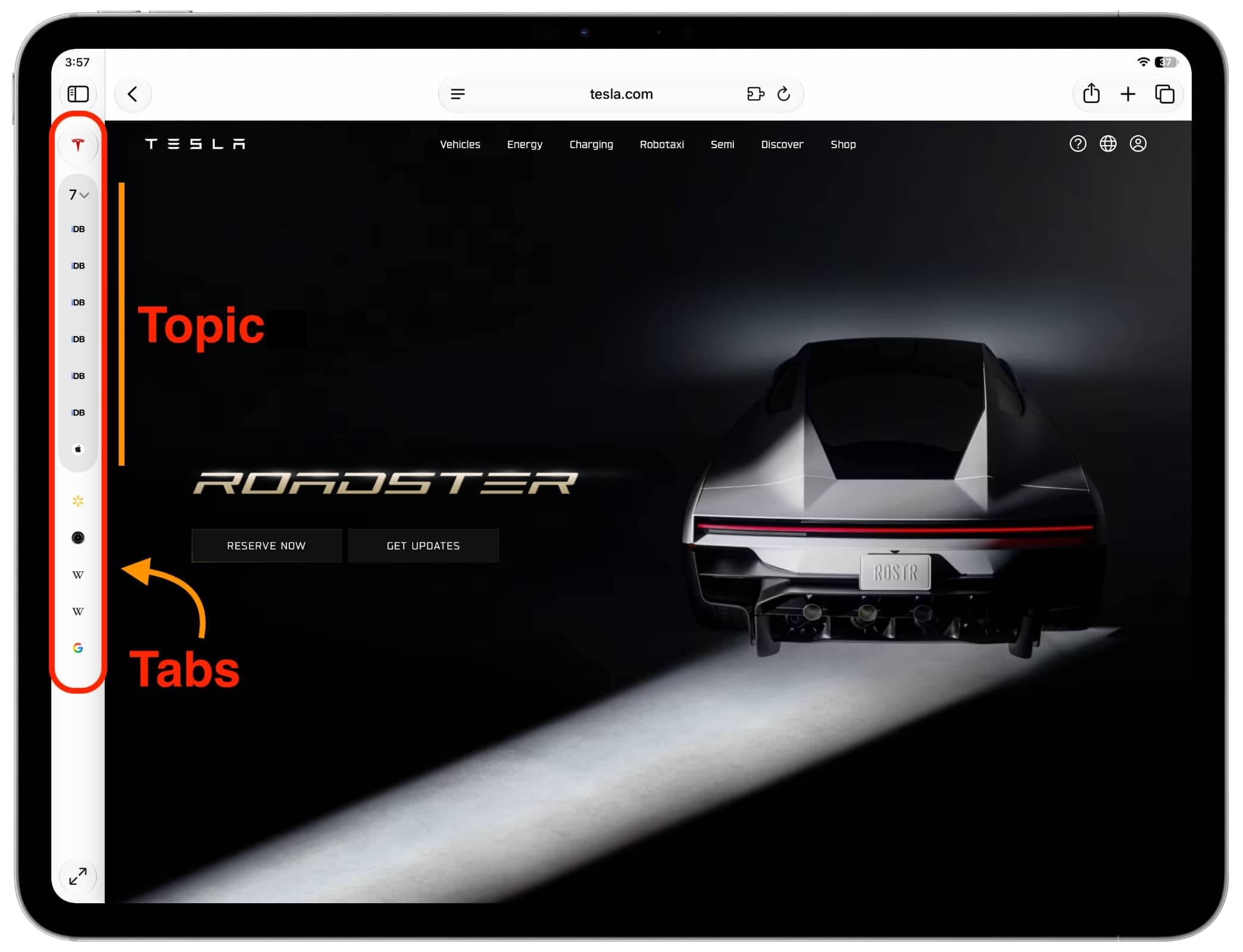
Now, open Safari and visit a few websites. The tab bar will appear on the left edge of the screen instead of the top, where it was earlier. You’ll see your open tabs and tab topic groups here.
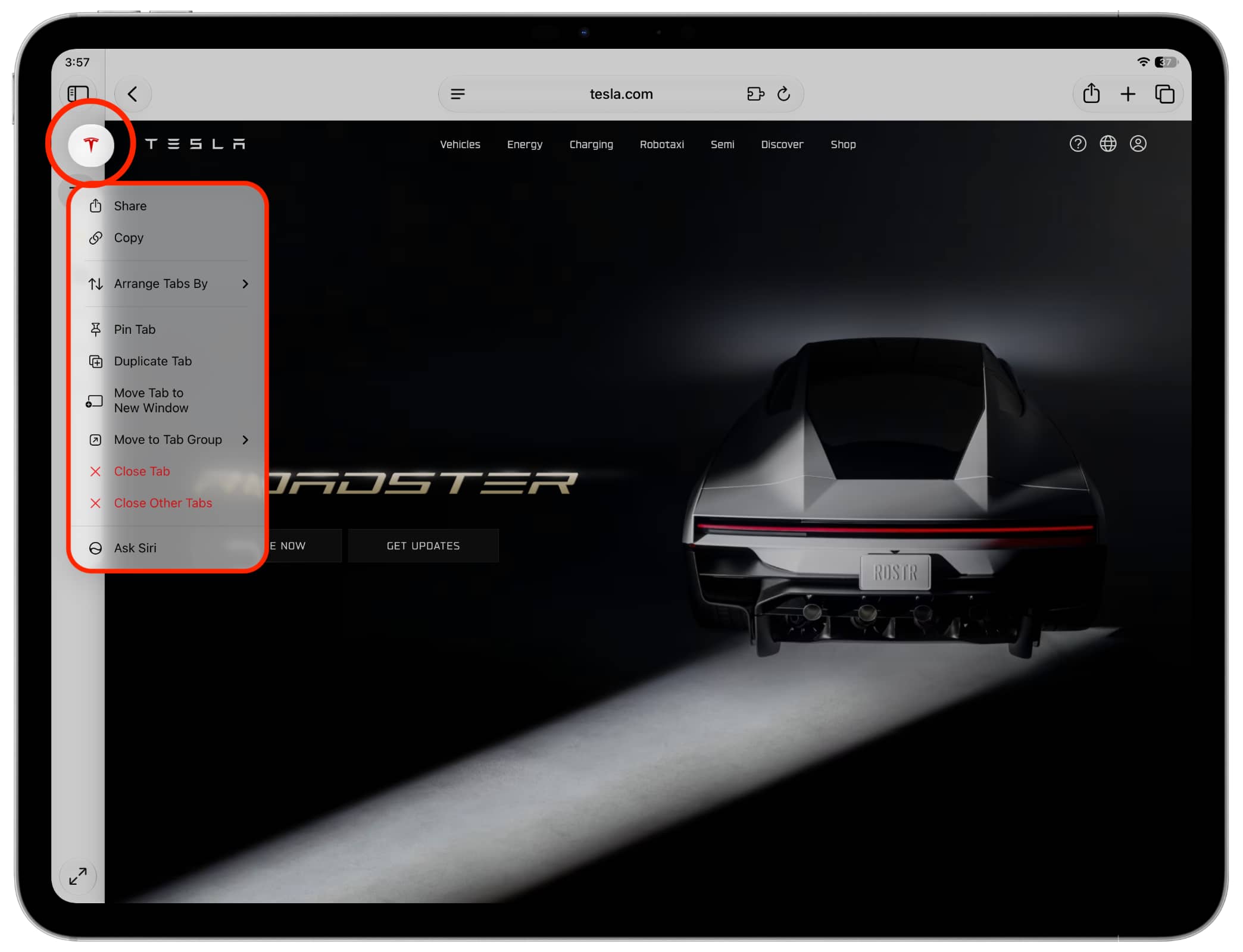
Touch and hold a tab icon to take additional action.
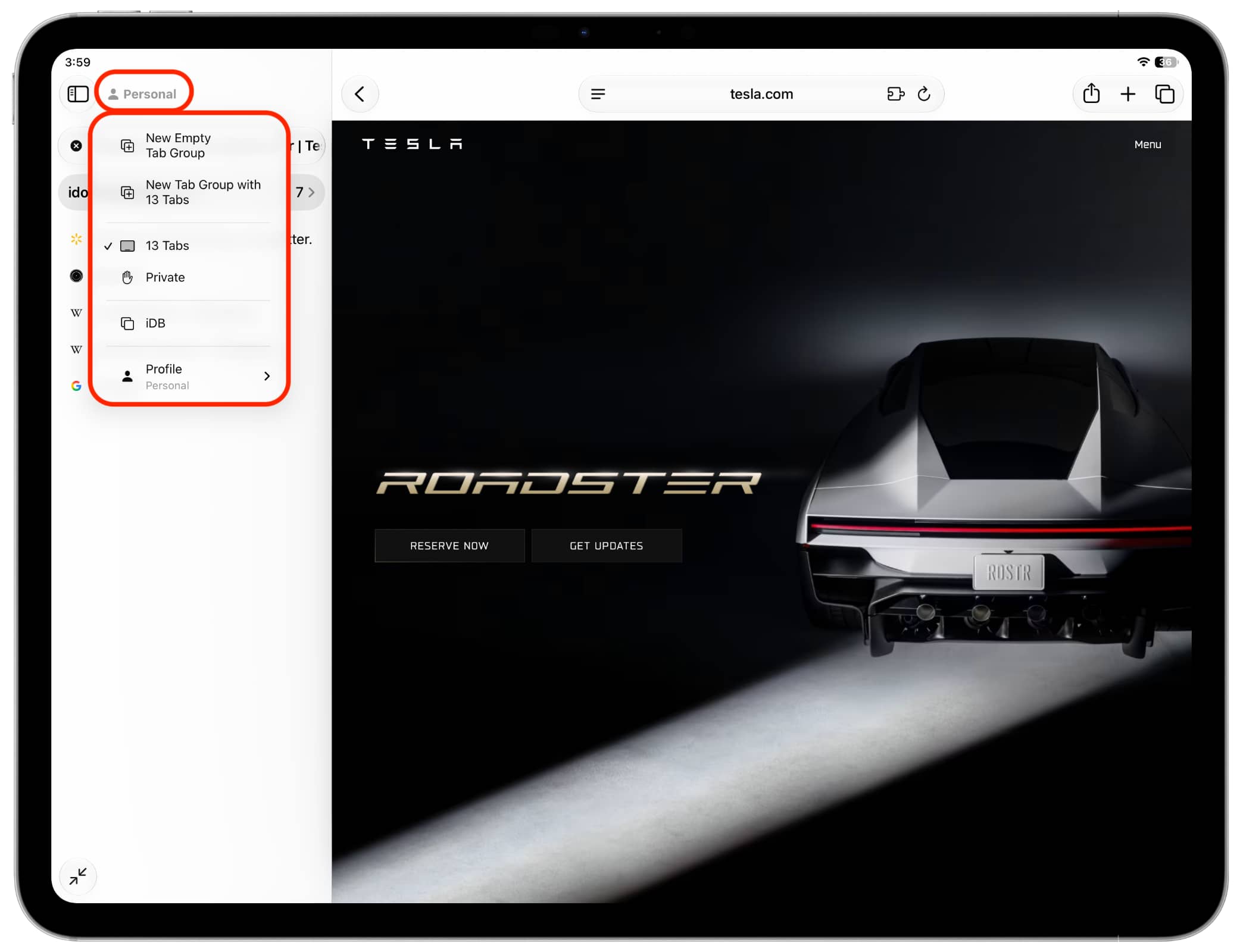
A dual-arrow button at the bottom lets you expand the tab column to see all tab names or switch to another Tab Group, Private window, browser profile, etc.
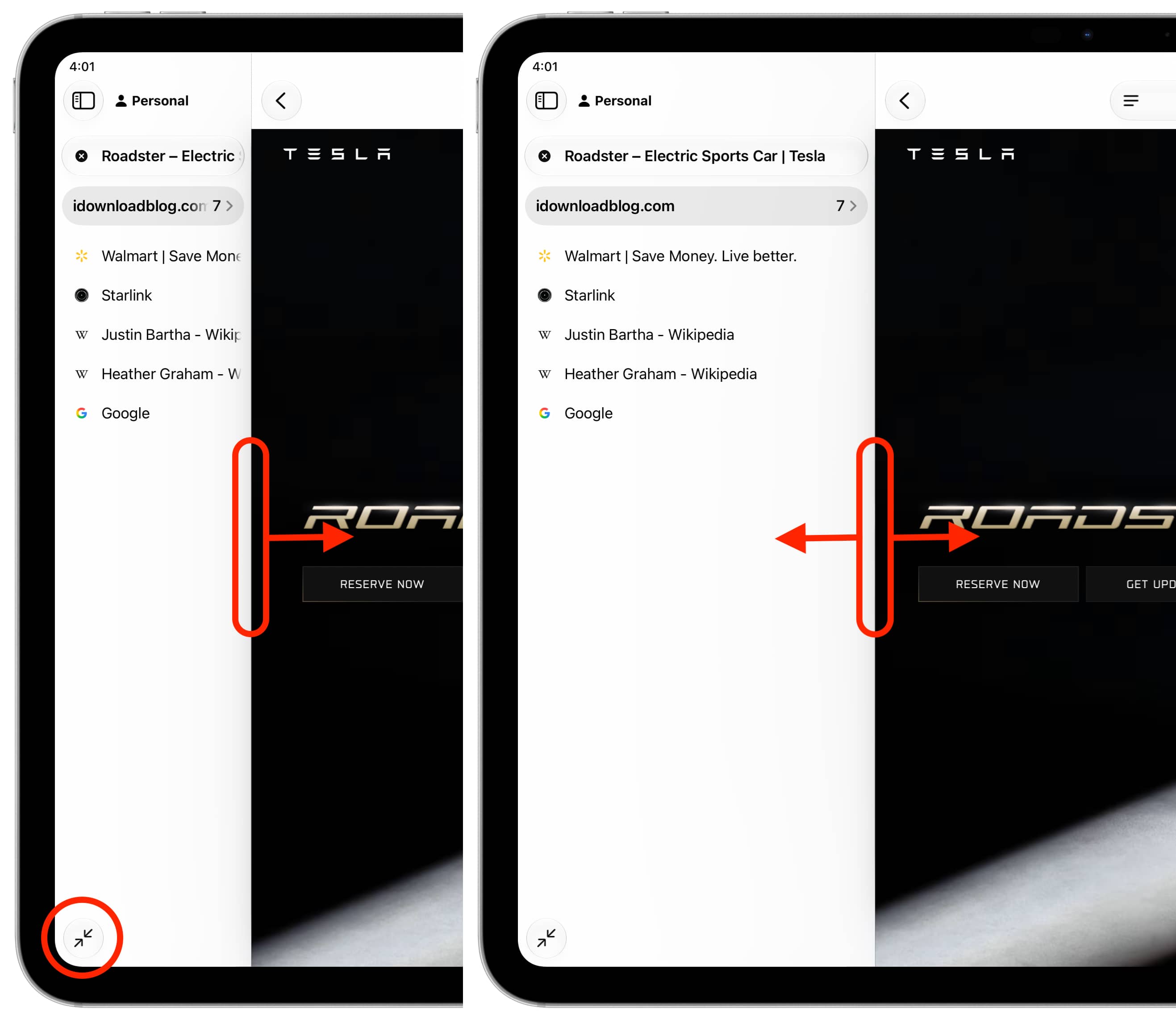
You can also tap the dual-arrow icon, then drag the sidebar left or right to resize it. Once you do that, tapping the dual-arrow icon will open the sidebar at the size you set.
Mac
- Update your MacBook or Mac desktop to macOS Golden Gate 27.3 or later.
- Open Safari.
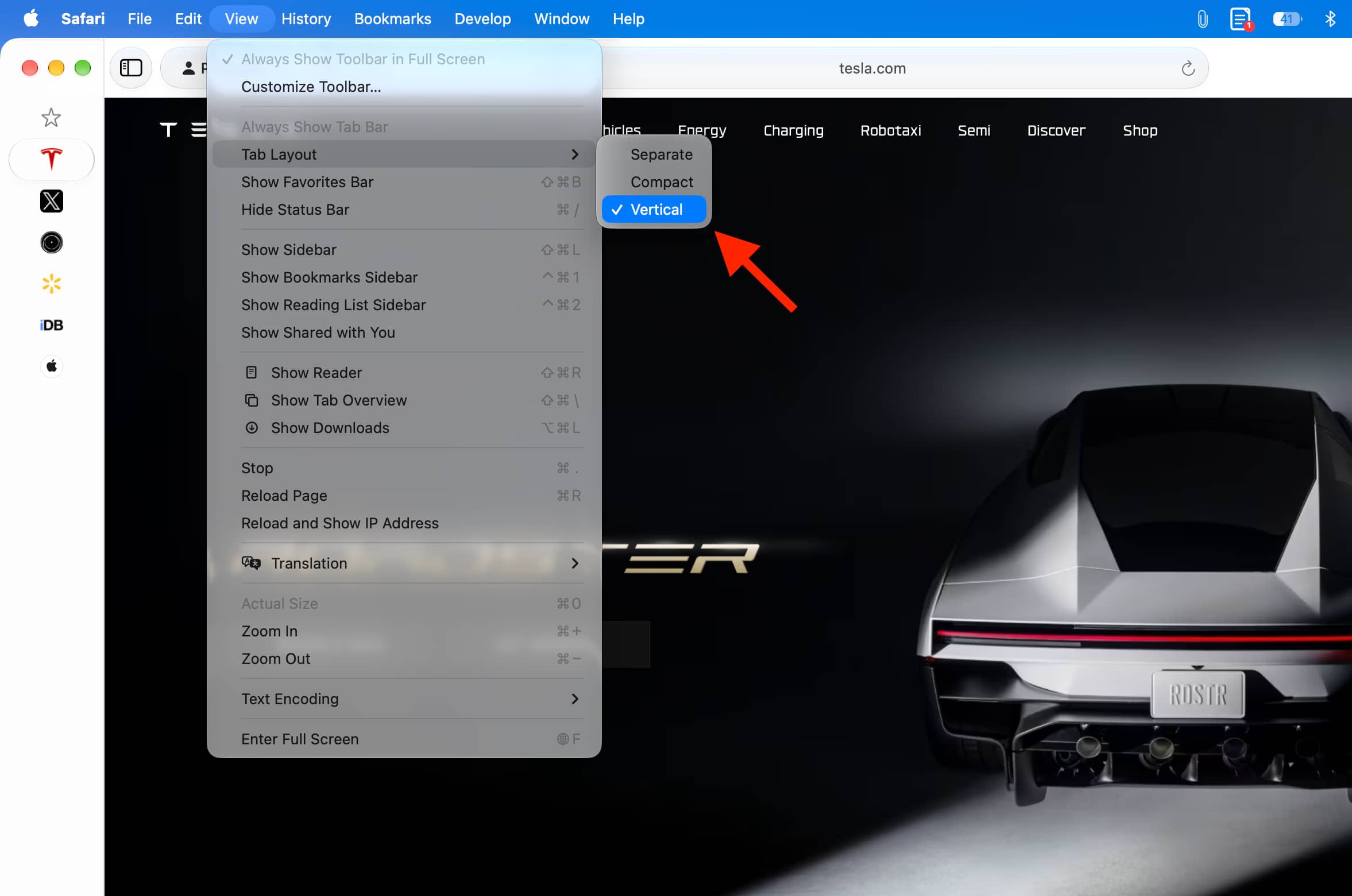
- Click View from the top menu bar and select Tab Layout > Vertical.
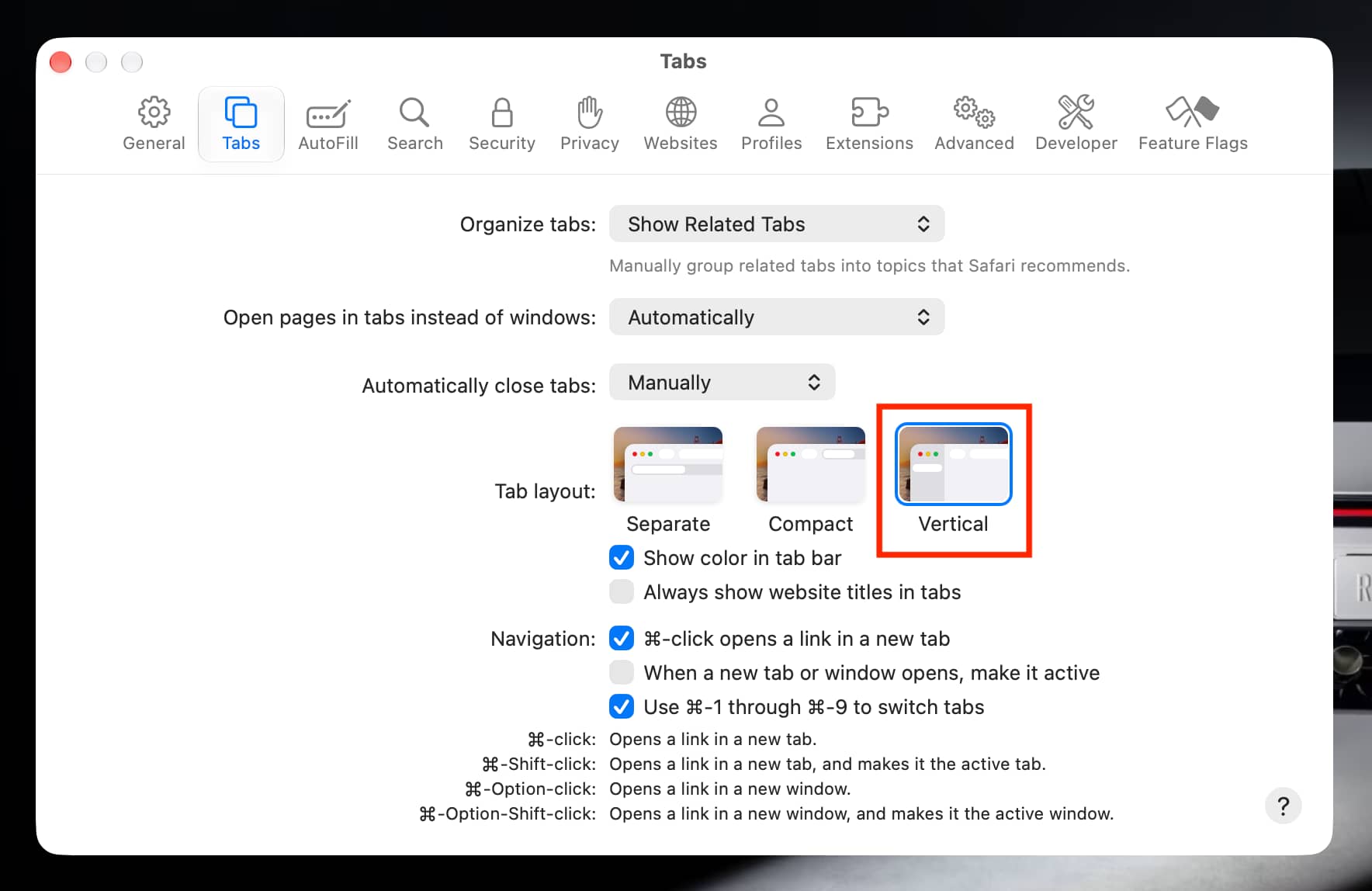
Or, go to Safari Settings > Tabs and select Vertical Tab Layout.
Your open tabs will now show on the left side of the screen instead of the top. You can right-click a tab icon to do everything you normally could in horizontal view.

While many people swear by vertical tabs, I don’t find it helpful for my work. This is because I often open multiple pages of the same website, like several WordPress or Wikipedia tabs. In normal top-tab mode, I can see part of the name and quickly switch to the one I want. But in vertical tabs mode, only the site icon is shown, which is the same for all tabs of a website, and I have to hover the pointer over an icon, see the name, and then click to switch.
What are your thoughts on this? Will you switch to the vertical tab style in Safari?
Also, check out: 12 new features added to Safari in iOS and macOS 27
Source link: https://www.idownloadblog.com/2026/11/05/vertical-tabs-safari/
