

How to see iPhone or iPad screen on a monitor or television
In this quick tutorial, we tell you about various ways to cast your iPhone or iPad screen to a computer monitor or television so you can see everything on a bigger canvas. Note: You can also connect a keyboard and mouse/trackpad to your iPhone or iPad to control the screen when casting to the big…
In this quick tutorial, we tell you about various ways to cast your iPhone or iPad screen to a computer monitor or television so you can see everything on a bigger canvas.

Note: You can also connect a keyboard and mouse/trackpad to your iPhone or iPad to control the screen when casting to the big display.
AirPlay
If you have a television (like this LG TV) or a monitor (like this Samsung monitor) with built-in AirPlay support, then follow these easy steps to cast your iPhone or iPad screen to it.
1) Power on your monitor or television. Go to their AirPlay settings if something like that is available. On some Android TVs, you may need to download a third-party app to use AirPlay.
2) Make sure Bluetooth and Wi-Fi are enabled on your iPhone or iPad. Then, open iOS Control Center and tap the Screen Mirroring icon. Wait for your monitor or television to appear here, then tap it.

3) You should see your iPhone or iPad screen on the bigger screen. If you see a connection prompt on the monitor or television, be sure to accept it.
Connect via an Apple TV
If your television doesn’t support AirPlay but you have connected an Apple TV via an HDMI cable, you can still AirPlay to it. It’s a recap of the above steps, but instead of a monitor or television, you’ll be selecting your Apple TV after tapping the screen mirroring icon in iOS Control Center.
Cast from specific apps
Many video apps, like YouTube, Netflix, and Prime Video, have a Cast/AirPlay icon right on the player. In most cases, it’s just an extension of the screen mirroring icon in iOS Control Center that makes it easy to see your video on the big screen. Simply tap it and select your AirPlay-supported display.
Connect directly using a cable
While this wired method is not as convenient as the wireless methods above, it is the most reliable, with nearly no lag. Simply connect your monitor or television to your unlocked iPhone/iPad’s USB-C or Lightning port, and it should work right away.

If your television or monitor has a USB-C input, a single cable is enough to connect your iPhone 15 or later and all recent iPads to it.
In case your monitor or television only has HDMI input, you’ll need a USB-C dongle/adapter (like this one from Anker) to connect.

For iPhone and iPad with a Lightning port, you’ll need a Lightning-to-HDMI adapter (like this one from Apple).

If your monitor is connected to a Mac
If your external screen (like an Apple Studio Display) is already connected to a Mac and you don’t have an available input port, here are three options for mirroring your iPhone or iPad to it.
iPhone Mirroring

Use iPhone Mirroring to see and control your iPhone (not iPad) from your Mac. By default, the window is medium-sized. But you can make it bigger (but not full-screen) by clicking View > Larger or by pressing Command + Plus (+) keys. iPhone Mirroring works wirelessly, provided Wi-Fi and Bluetooth are enabled.
QuickTime Player

Connect your iPhone or iPad to a Mac using a USB-C or Lightning cable. Then, open Apple’s built-in QuickTime app on your Mac and click File > New Movie Recording from the top menu bar. Now, click the tiny arrow on the QuickTime window and select iPhone or iPad as the screen. You can also screen record it now.
AirPlay
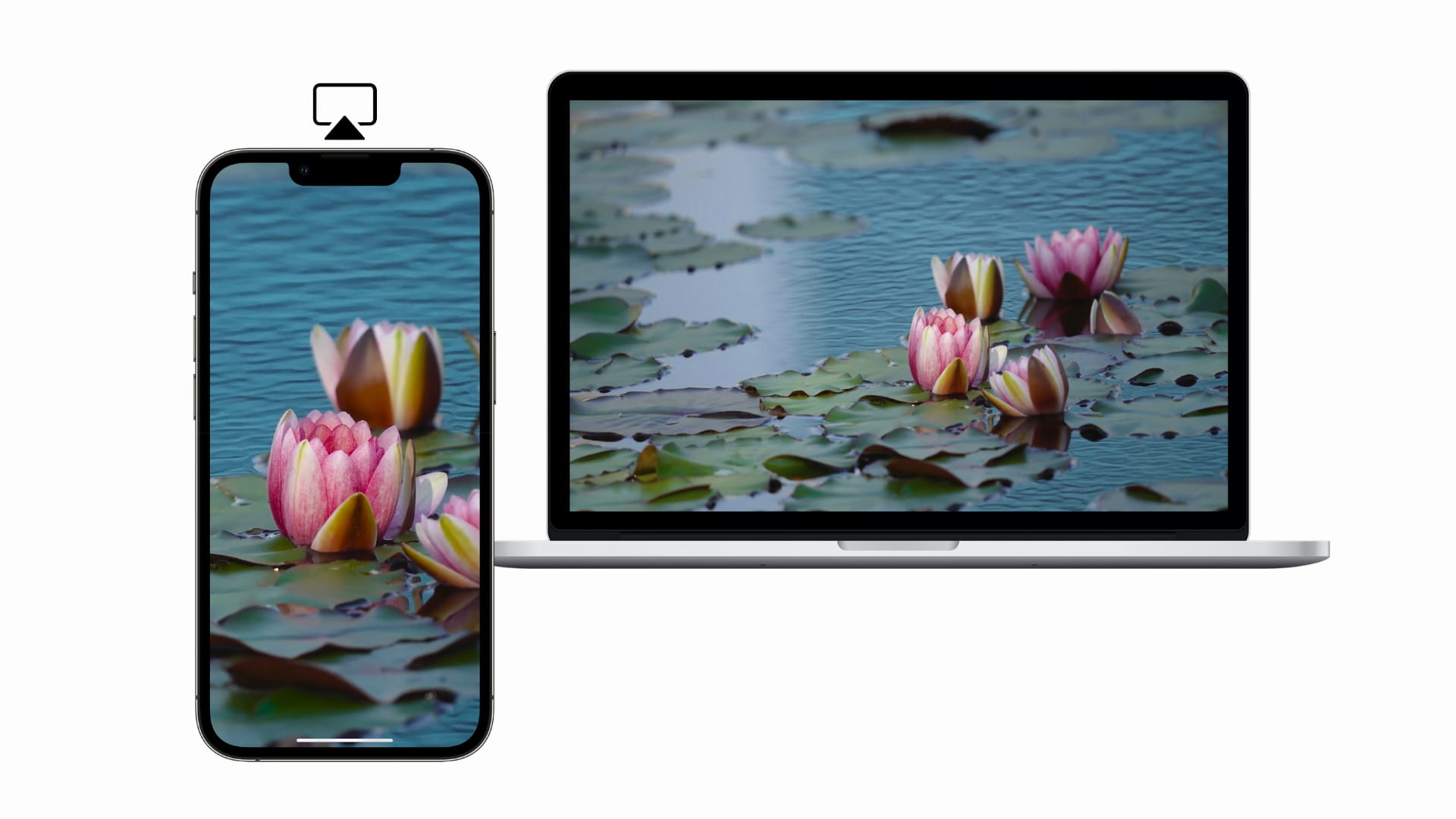
And lastly, Mac can also act as an AirPlay receiver (this feature is already enabled by default). Simply tap the Screen Mirroring icon in iOS Control Center and select your Mac to project your iPhone or iPad screen to it. Note that you cannot use your Mac for anything else unless you end the AirPlay video session.
Also, check out: 17 ways to use your iPhone and iPad together with your Mac
Source link: https://www.idownloadblog.com/2026/04/07/iphone-to-monitor-tv/