
How to recover photos and videos from a cracked iPhone
In this guide, we go over several possible ways to recover your photos and videos from an iPhone or iPad with a cracked or non-working screen.

The methods here require specific conditions, which we list under each option. The most important thing is that the internals should be working (even though the screen is cracked).
Option 1: If you use iCloud Photos
If you had set up iCloud Photos on your iPhone, chances are most of your pictures and videos are already saved to Apple’s secure servers. Visit icloud.com/photos and log in with your Apple Account and password, or open the Photos app on your iPad, Mac, other iPhone, or Windows PC, and you should see your cracked iPhone photos there.
In case recent pictures and videos are missing, here’s what to do:
- Don’t turn off your cracked iPhone.
- Bring it home or to your office in range of a known Wi-Fi network.
- Now, plug your cracked iPhone into wired and wireless charging (if the back and charging port are not cracked).
Now wait, and chances are your cracked iPhone will latch on to the known Wi-Fi network and upload recent photos to iCloud. If you remember having Low Power Mode on, say Hey Siri, turn off Low Power Mode (it should work even if the screen is cracked).
Option 2: Use iPhone Mirroring
This recovery method will work if you own a Mac and have used iPhone Mirroring before. Additionally, you must have set up iPhone Mirroring to “Authenticate Automatically” instead of “Ask every time.” And even with both these in place, you’ll have to pray that your Mac doesn’t randomly ask you to authenticate this session by typing in the iPhone passcode on the cracked screen.

To give this method a shot, take your iPhone near your Mac and open the iPhone Mirroring app. If it connects and authenticates automatically, you’re golden.
Open the Photos app, select your important photos and videos, click the share button, and save them to iCloud Drive, Google Drive, Dropbox, etc. You can also just AirDrop the selected photos to the same Mac where you’re using iPhone Mirroring or some other Apple device, like an iPhone belonging to a family member.
Option 3: Try backing up to your Mac or PC
You must enter the iOS device passcode on the screen to trust the computer when you connect it to a Mac or PC for the first time via a USB cable.
Secondly, when you try to back up your iPhone or iPad using macOS Finder or the Windows Apple Devices app, you may be prompted to enter the passcode on your iOS device. This is especially true if it has been a while since you last backed up or your device is running the latest version of iOS 26.
Still, you can give this method a go, hoping a new backup happens without the password prompt on the cracked iPhone screen.
- Connect your cracked-screen iPhone or iPad to a previously used and trusted Mac or Windows PC via a USB cable.
- Open Finder on Mac or the Apple Devices app on Windows PC and select the iOS device in the left sidebar.
- Click the “Back Up Now” button and wait for it to finish.
- Once backed up, you can restore the backup file to another iOS device or to the same cracked phone after its screen is fixed.
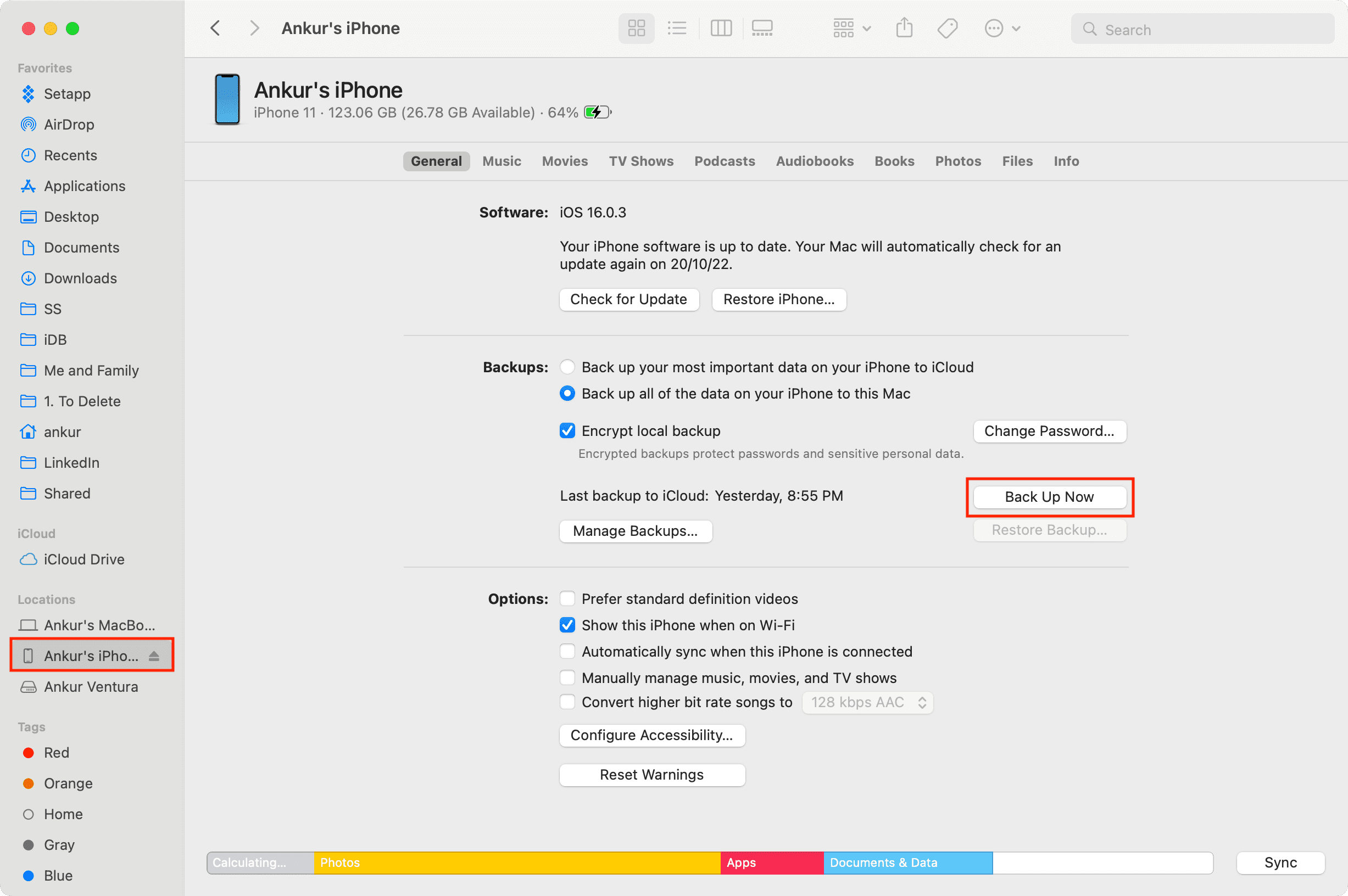
Note that your device backup won’t include photos and videos if you already use iCloud Photos.
Option 4: Connect to a monitor
You can try this if your cracked iPhone or iPad screen is working partially.

Connect your iPhone or iPad to a monitor using a USB-C cable or an appropriate adapter. Then, press the side button and keep your face in the Face ID range, hoping it unlocks and wakes up. Once unlocked, you should be able to see your iPhone screen on the monitor. Use that to tap the partially working screen to select and AirDrop your pictures to another device.
Option 5: Use a monitor and mouse
Try these steps if your iPhone or iPad’s screen isn’t responding to touch, but Face ID/Touch ID still works. Another important thing to keep in mind is that you can use a mouse directly with an iPad (no extra setup required), but on an iPhone, the connected mouse will only work when AssistiveTouch is enabled.

- Get an appropriate USB adapter/dongle with ports to connect a wired USB mouse and a USB-C or HDMI display out to a monitor/television. Most USB-C dongles can do this, but check the product description before buying.
- Connect the USB dongle to your iPhone.
- Then, connect a wired mouse and monitor’s USB-C or HDMI cable to the USB dongle.
- Now, press the side button to wake the phone, and make sure your face is within range for Face ID to unlock the cracked iPhone or iPad.
- Once unlocked, you should see your iPhone screen on the connected monitor (make sure you have set the monitor/television input correctly to USB-C or the right HDMI port).
- Now, swipe up using the mouse to go to your cracked iPhone or iPad Home Screen. Use the mouse to navigate, then AirDrop them to another device or save the photos to iCloud Drive or Google Drive.
Option 6: Check if you have an old device backup
If you back up your iPhone or iPad to a computer or iCloud, then that will have all your photos and videos, provided you don’t already use iCloud Photos and did not exclude Photo Library from your iCloud backup.
You can restore your cracked iOS device backup to another iPhone or iPad. Or, restore it after getting the screen fixed.

Select an iPhone or iPad in macOS Finder or the Windows Apple Devices app, and click Manage Backups to view previous backups.
Option 7: Get the screen repaired
Lastly, if none of the above tips work for you, the last resort is to get the screen repaired. You can get an expensive repair at an Apple Store or an authorized service center.
And if you don’t want to keep using this particular iPhone (as it has suffered other damage), but getting the media out is important, you can consider a cheap third-party screen replacement so you can use the phone to export your photos.
Third-party recovery apps won’t always work
You may come across third-party apps that claim to recover your photos on a broken iPhone and iPad. But they may not be helpful unless you were already using those apps on your Mac or Windows PC. So, I won’t suggest installing and using them. They require you to trust the computer before your iPhone or iPad can appear inside those apps, and trusting requires entering the passcode on the cracked screen.

Use the comments section to let us know if you were able to recover your photos and videos from your cracked iPhone and iPad. And also tell us which method worked? Thanks…
Source link: https://www.idownloadblog.com/2026/03/27/recover-photos-cracked-iphone/
