
Tips to reduce eye strain when using iPhone or iPad
Go through these 14 tips and try to follow them to reduce eye pain and headaches when using your iPhone or iPad for long sessions.
In this digital age, many people, including me, are glued to screens for hours every day. If you don’t stay mindful, it can cause eye strain, headaches, dizziness, and a general feeling of lethargy. These quick tips can help prevent or reduce such negatives.
Follow the 20-20-20 rule
This is super simple to do!
After staring at your phone or computer screen for 20 minutes, look at something like a wall or object that’s 20 feet from you for 20 seconds. This simple action helps relax your eye muscles and reduces pain.

Even if you’re super determined, you may not remember to do this periodically. Therefore, I recommend using apps that will alert you every 20 minutes. Here are three free options and one paid that work well:
- 20-20-20
- Eye Care 20-20-20 Tweny
- Relax eyes
- Eye Care 20 20 20 (requires a subscription)
If you have iPhone Mirroring set up, these app alerts will also appear on your Mac, so you don’t need a separate app there.
Blink often
When you don’t look at a screen, you blink more. But when scrolling through X and Instagram, you’ll blink far less, which leads to dry eyes, which in turn can cause pain and irritation. So, to keep your eyes moist, make sure to blink regularly when using your iPhone, iPad, or other devices.
Adjust the screen brightness
Automatic brightness is enabled by default to adjust the screen brightness and help save battery. However, this isn’t perfect all the time.
If you find the screen brightness is too high or too low, go to Control Center and adjust it appropriately. More often than not, this simple thing can significantly reduce eye strain.
Many video apps like Netflix allow changing the brightness by swiping up and down right on the video player. Learn about this for your most-used media app and use it liberally.
Secondly, when it’s pitch dark and even the lowest screen brightness feels a lot, use this trick to lower iPhone screen brightness beyond the minimum!
Toggle Dark Mode on or off

Using Dark Mode at night can cut down on extra light and make the screen easier on your eyes. Conversely, I recommend turning it off during the day if you find it harder to read white text on a black background.
Make text bigger
You don’t need to squint your eyes to see small text and cause unnecessary pain. iOS lets you increase the text size on a webpage, the text size in a particular app, or the overall system font size.
Don’t hold the device too close to your face
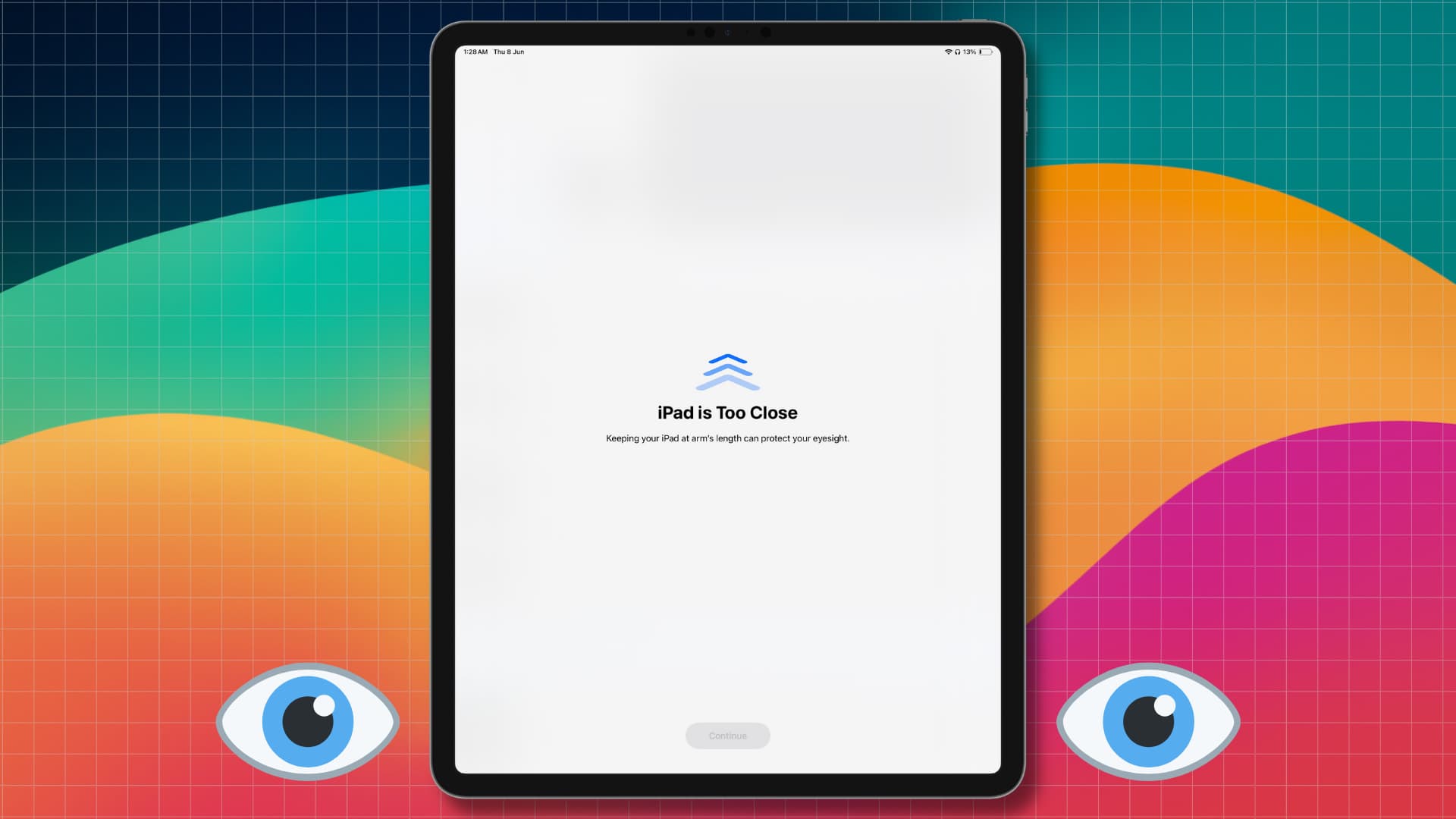
Always try to hold your iPhone or iPad at least a foot (12 inches) away from your eyes. Holding too close (or too far) may cause unnecessary strain.
iOS has a lesser-known Screen Distance feature that can force you to keep your device farther away. You can turn it on in Settings > Screen Time > Screen Distance.
Wear glasses if you use one
If your eyesight is weak and you have been prescribed glasses for reading, driving, and other work, please use them even when you’re using your phone. Of course, talk to your ophthalmologists (eye doctor) for precise guidance.
Try True Tone and Night Shift

True Tone automatically adjusts the color temperature of your phone screen based on the light around you. And Night Shift removes blue light for a warmer, orange look, which can help if you’re using your phone in bed at night.
You can toggle both True Tone and Night Shift by touching and holding the brightness slider in Control Center or going to Settings > Display & Brightness.
Use Reduce White Point
If you feel that reducing just the screen brightness is not enough, and white, black, or other parts of the screen still feel uncomfortable, go to iOS Settings > Accessibility > Display & Text Size and turn on Reduce White Point. Then drag the slider to a comfortable level.
Tip: Use Accessibility Shortcut to turn this and other accessibility features on and off quickly, without going to the Settings app each time.
Kill system motion, animation, and flashing lights
iOS has a lot of slick motion effects and animations throughout the operating system. If you feel uncomfortable with fast movements and flashing lights, turn them off by following these steps:
- Reduce Motion: Settings > Accessibility > Motion
- Dim Flashing Lights: Settings > Accessibility > Display & Text Size
Use the Vehicle Cues feature
When you use your phone in a car, bus, or moving vehicle, use the handy Vehicle Motion Cues feature, which displays multiple small dots on the screen to help reduce motion sickness and associated eye pain and headaches.
Stay cool, hydrated, and take breaks
I have frequently noticed that using my phone outdoors on hot days or not drinking enough water leads to eye discomfort and mild headaches. So, take care of these.
Secondly, using your phone continuously for long stretches in one sitting affects your overall health. Make it a habit to put your phone aside and take regular breaks. If you wear an Apple Watch, turn on the Stand Reminders feature that nudges you to walk or stand for a minute after you have been sitting for an hour.
Don’t force yourself to look at things you don’t like
Lastly, this tip is again based on personal observation.
I have noticed that if it’s a bad news day and I keep scrolling X, looking at post after post I don’t like or agree with, it messes with my head, leading to fatigue of all kinds.
If this happens to you, please close social media and take a break. Or, just engage (like & comment) with things that align with your views, and chances are the social media algorithm will show you similar things that you love (ensuring you live happily in your own safe bubble).
Which tips do you use to keep eye pain and headache under control when using your iPhone or iPad for long?
On a related note:
- 20 simple yet effective tips to reduce your iPhone usage
- 10 tips to reduce iPhone Home Screen clutter and improve focus
Source link: https://www.idownloadblog.com/2026/04/02/reduce-eye-strain-using-iphone/


