In this brief tutorial, we show you when the X app (formerly Twitter) starts playing videos in Picture in Picture on your iPhone and how you can stop that from happening.
When the X app plays video in the background
Older versions of the X app would keep playing a video in Picture in Picture (PiP) if you swiped out of the app, as long as you had a premium subscription.
But the recent version of the app no longer does that. Instead, it only continues to play the video in Picture in Picture if you:
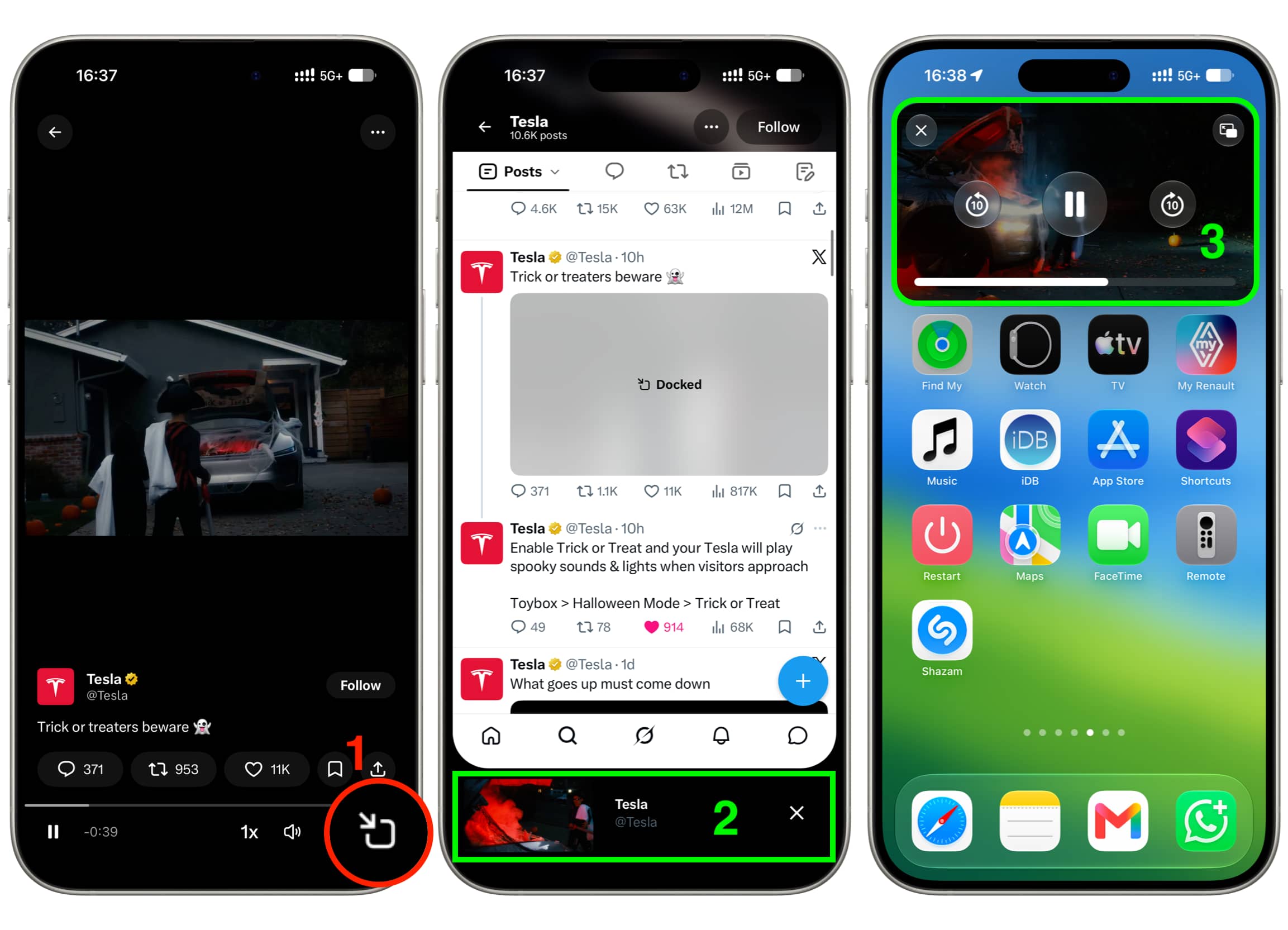
specifically tap the PiP button under the video, which first makes it play in a tiny horizontal bar at the bottom of the screen;
then swipe up to exit the app, which moves the video playback to the standard iOS Picture in Picture window.
Stop background video play from X app
As evident from my explanation above, if you don’t want the video from X to keep playing even after going out of the app, then simply don’t tap the Picture in Picture icon before leaving the app.
In case the video is already at the bottom of your X app screen, tap the “X” button to close it, and then you can swipe out of the app; the video won’t play in the background.
Turn off Picture in Picture for X app videos
Unlike apps like YouTube, the X app has no in-app controls to manage Picture in Picture on iPhone or iPad. iOS also doesn’t offer a per-app Picture in Picture management option at the system level.
So, if you want to permanently turn it off, you’ll have to disable Picture in Picture at the OS level by following these steps. Just remember that it will also turn off automatic Picture in Picture for YouTube, Netflix, Prime Video, FaceTime, WhatsApp video calls, and every other app.
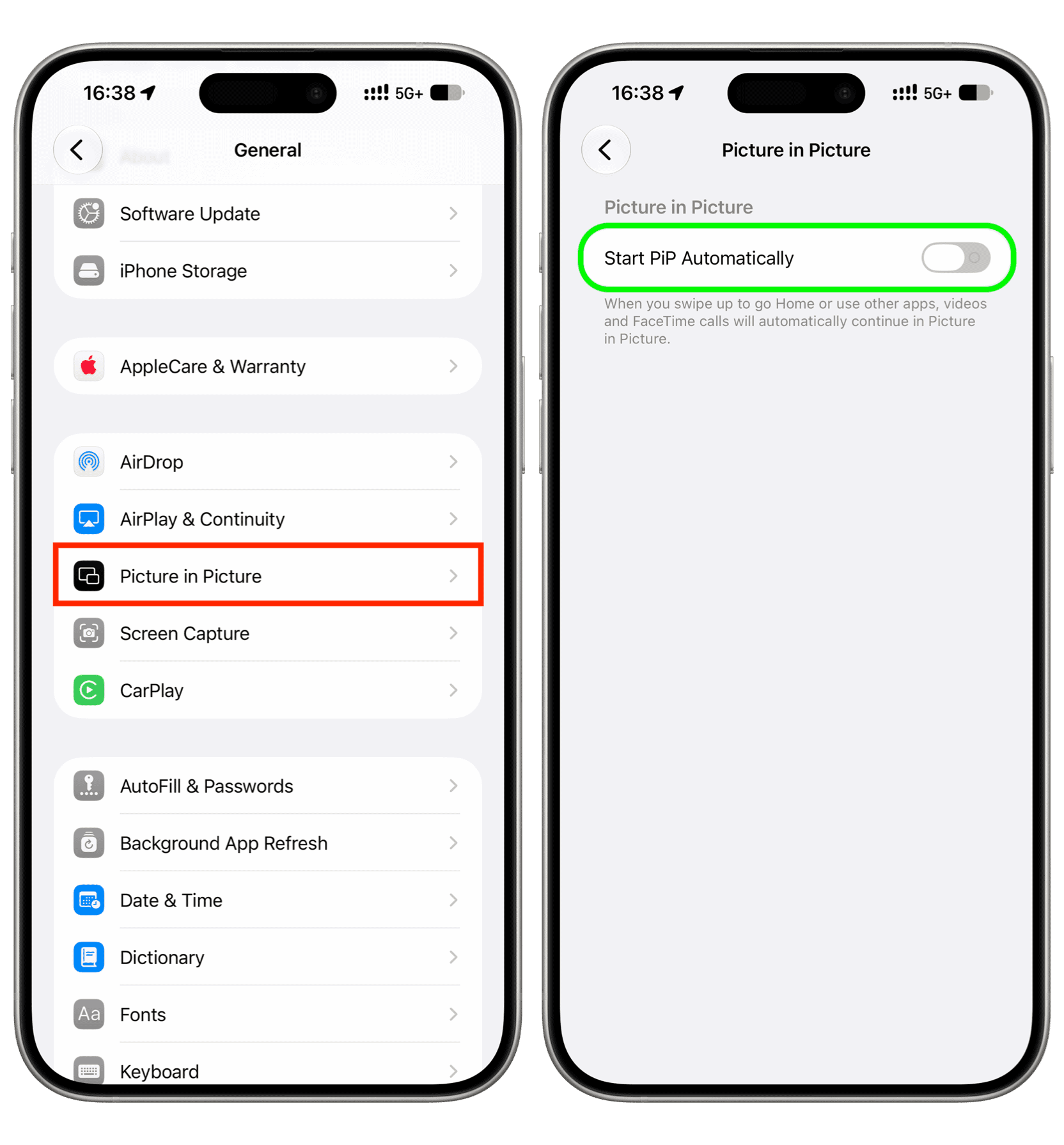
Open the Settings app on your iPhone or iPad.
Tap General.
Tap Picture in Picture.
Turn off Start PiP Automatically.
Moving forward, when you have a video playing in the bottom bar of the X app and swipe up to exit the app, the playback will no longer continue in Picture in Picture, but you’ll still hear its audio. You can manage audio playback by tapping the controls on the Lock Screen or Dynamic Island.
Apple today announced the new 14-inch MacBook Pro with M6, delivering even more performance, powerful on-device AI capabilities, and faster connectivity for college students, business users, creators, and more. M6 features an advanced 12-core CPU with the world’s fastest CPU core, so everything from productivity tasks to more demanding pro workflows feels incredibly fast and responsive. The 12-core GPU delivers up to 30 percent faster graphics and up to 25 percent faster AI workloads when compared to M5, making the 14-inch MacBook Pro with M6 a compelling value for users who need serious power.
For those upgrading from M1, the performance gains are even more significant, with up to 11x faster graphics and up to 13x faster AI performance. With additional Neural Accelerators in the GPU and a Dual 16-core Neural Engine, M6 turns MacBook Pro into an even more powerful platform for AI — from taking advantage of Siri AI and Apple Intelligence features across apps and macOS to running LLMs locally, all while preserving user privacy.
In addition, the 14-inch MacBook Pro features Wi-Fi 7 and Bluetooth 6, while superfast storage makes working with large files, exporting projects, and running demanding AI workflows fly. And with phenomenal battery life of up to 24 hours, it delivers the same remarkable performance whether plugged in or on battery, so users can work, create, and pursue their passions from anywhere. It also offers the advanced features users love, including the stunning Liquid Retina XDR display with a nano-texture option, a 12MP Center Stage camera, an immersive six-speaker sound system, and a wide array of ports.
Together with macOS 27, the new 14-inch MacBook Pro with M6 is a major upgrade for existing Mac users and those coming to Mac for the first time. Available in space black and silver, it can be pre-ordered beginning tomorrow, October 28, with availability starting Friday, November 6.
“The 14-inch MacBook Pro is the pro laptop of choice for a wide range of users — from college students, to business professionals across every industry, to multidisciplinary creators doing it all on one device,” said Shelly Goldberg, Apple’s vice president of Hardware Engineering, in a statement. “With the powerful M6 chip, we’re taking performance to the next level, with a boost in CPU speed and graphics and even more powerful capabilities for on-device AI. With its amazing battery life, remarkable Liquid Retina XDR display, and even faster connectivity, the new 14-inch MacBook Pro with M6 delivers a fantastic combination of performance, capability, and value.”
M6 brings even more performance and next-level AI capabilities to the 14-inch MacBook Pro. Featuring a powerful 12-core CPU, a 12-core GPU with Neural Accelerators in each core, Dual 16-core Neural Engine, and faster unified memory, MacBook Pro with M6 is faster and more responsive.
The 12-core CPU, with two more cores than before, brings blazing-fast single- and multithreaded performance, so users can fly through everything from multitasking across apps to compiling code to handling complex creative workflows. The 12-core GPU, also with two additional cores, delivers up to 30 percent faster graphics performance when compared to M5. Everything from 3D modeling to photo editing and gaming feels incredibly fast, enhanced by a third-generation ray-tracing engine and Dynamic Caching to optimize on-chip memory. It also brings up to 25 percent faster performance for on-device AI workloads, like LLM prompt processing, compared to M5. The Dual 16-core Neural Engine delivers up to 1.9x faster performance than M5 and works with the advanced GPU to dramatically accelerate AI workloads like image generation, Super Resolution, and AI upscaling. The Neural Engine also powers Apple Intelligence, enabling advanced and energy-efficient on-device AI processing. The 14-inch MacBook Pro with M6 does all this with industry-leading performance per watt and up to 24 hours of battery life, the longest ever in a Mac. With 16GB of unified memory standard, configurable up to 32GB, and higher memory bandwidth up to 170GB/s, MacBook Pro makes multitasking and working with demanding apps and large projects even faster.
• Up to 13x faster time to first token performance for LLM prompt processing compared to the 13-inch MacBook Pro with M1, and up to 1.3x faster than the 14-inch MacBook Pro with M5.
• Up to 11.7x faster render performance with ray tracing in Blender compared to the 13-inch MacBook Pro with M1, and up to 1.3x faster than the 14-inch MacBook Pro with M5.
• Up to 3.3x faster image-processing performance in Affinity compared to the 13-inch MacBook Pro with M1, and up to 1.2x faster than the 14-inch MacBook Pro with M5.
• Up to 2.5x faster project build performance when compiling code in Xcode compared to the 13-inch MacBook Pro with M1, and up to 1.3x faster than the 14-inch MacBook Pro with M5.
There’s never been a better time for customers to upgrade from a previous-generation MacBook Pro with Apple silicon or an Intel-based Mac. The 14-inch MacBook Pro with M6 delivers remarkable value thanks to major performance improvements and powerful AI capabilities. The new 14-inch MacBook Pro also features all of the compelling capabilities that have made it so popular, including:
• In addition to the huge leap in performance, battery life gets up to 14 additional hours for Intel-based upgraders and up to four more hours for users coming from M1, delivering up to 24 hours overall, so users can get more done on a single charge. Users coming from Intel-based and M1 systems will also get 16GB of starting unified memory, an additional Thunderbolt port, and the space black finish with an anodization seal for fewer fingerprints.
• The stunning Liquid Retina XDR display delivers up to 1600 nits of peak HDR brightness and a 1,000,000:1 contrast ratio, bringing HDR photos and videos to life with deep blacks, brilliant highlights, and vibrant colors. And for users working in bright or challenging lighting conditions, a nano-texture display option dramatically reduces reflections and glare.
• Now with Wi-Fi 7 and Bluetooth 6, the 14-inch MacBook Pro delivers fast wireless performance and low latency, along with support for up to two external displays. Its versatile array of ports — including the HDMI, MagSafe 3, and three Thunderbolt 4 ports; an SDXC card slot; and a headphone jack — makes it easy to connect high-speed peripherals, transfer photos, or expand a workspace.
• A 12MP Center Stage camera with Desk View helps keep users perfectly framed on video calls, while a studio-quality three-mic array and amazing six-speaker sound system with Spatial Audio deliver an immersive audio experience. Fast charging: MacBook Pro with M6 supports fast charging, reaching up to 50 percent charge in just 30 minutes when paired with a compatible higher-wattage USB-C power adapter, such as the 96W Power Adapter.
• With an enclosure made from 100 percent recycled aluminum, MacBook Pro is exceptionally durable and can stand up to everyday use for years to come.
• When used together with Continuity, iPhone and Mac are even more powerful — letting users move seamlessly across devices to share files and photos, hand off tasks, and even control their iPhone from their 14-inch MacBook Pro. Users switching to Mac for the first time can use iPhone to conveniently and securely transfer settings, files, photos, passwords, and more.
The new 14-inch MacBook Pro with M6 comes to life with macOS 27, which includes Siri AI, a profoundly more capable, conversational, and personal assistant; helpful Apple Intelligence features across everyday apps; and improvements that make the Mac even more responsive and reliable. Siri AI can draw on personal context to help users find what they need in the moment across messages, emails, photos, and more; answer questions about virtually any topic; and get things done across apps — all with groundbreaking privacy protections. Siri AI is integrated into Spotlight and systemwide context menus, and users can ask Siri about what’s on their display with Visual Intelligence using a dedicated keyboard shortcut. Users can also write and edit with Siri almost anywhere they type.
Additionally, Apple Intelligence makes apps smarter and more useful. In Safari, it powers new tools that automatically organize a user’s tabs into topics; notify them of website changes, like product restocks or price drops; and enable the creation of custom extensions based on a description. Users can also easily create an automation in Shortcuts by simply describing it, or tap into intelligent photo editing tools in the Photos app. The new 14-inch MacBook Pro gets even more responsive, reliable, and delightful with refinements to design, performance, search, and more. Updates to Liquid Glass deliver an even more focused and approachable experience. A new slider in Settings gives users the option to personalize Liquid Glass, adjusting it anywhere from ultraclear to fully tinted to match their preference, and app icons are sharper and more defined.
The new 14-inch MacBook Pro with M6 was built with the environment in mind and drives progress toward Apple’s ambitious plan to be carbon neutral across its entire footprint by 2030. It is made with 45 percent recycled content overall, including 100 percent recycled aluminum in the enclosure, 100 percent recycled cobalt in the battery, and, in a first for Apple, 100 percent recycled tantalum in multiple capacitors. It is manufactured with 60 percent renewable electricity, such as wind and solar, across the supply chain. The 14-inch MacBook Pro with M6 is designed to be durable and repairable, and meets Apple’s high standards for energy efficiency and safe chemistry. As with all Apple products, its paper packaging is 100 percent fiber-based and designed to be recycled.
• Customers can pre-order the new 14-inch MacBook Pro with M6 starting tomorrow, October 28, on apple.com/store and in the Apple Store app in 35 countries and regions, including the U.S. It will begin arriving to customers, and in Apple Store locations and Apple Authorized Resellers, starting Friday, November 6.
• The 14-inch MacBook Pro with M6 starts at $1,999 (U.S.) and $1,899 (U.S.) with education savings. Additional technical specifications and configure-to-order options are available at apple.com/macbook-pro.
• With Apple Upgrade, eligible customers in the U.S. can lease a new Mac with low monthly payments and easily upgrade at the end of their lease. Lease the 14-inch MacBook Pro with M6 with Apple Upgrade from $38.99 (U.S.) per month, excluding taxes and any trade-in credit, for 36 months.
• With Apple Trade In, customers can trade in their current computer and get credit toward a new Mac. Customers can visit apple.com/shop/trade-in to see what their device is worth. With year-round education pricing — available to current and newly accepted college students and educators — customers can save on MacBook Pro, along with a wide range of products and services through the Apple Store online and in stores. Visit the Apple Education Store for details. Customers in the U.S. who shop at Apple using Apple Card can pay monthly at 0 percent APR when they choose to check out with Apple Card Monthly Installments, and they’ll get 3 percent Daily Cash back — all up front. More information — including details on eligibility, exclusions, and Apple Card terms — is available at apple.com/apple-card/monthly-installments.
• AppleCare delivers exceptional service and support, with flexible options for Apple users. Customers can choose AppleCare+ to cover their new Mac or, in available markets, AppleCare One to protect multiple products in one simple plan. Both plans include coverage for accidents like drops and spills, theft and loss protection on eligible products, battery replacement service, and priority support from Apple Experts. In the U.S., customers can also choose AppleCare One Family, which extends that same coverage to every eligible device across an Apple Family Sharing group for one fixed monthly price. For more information, visit apple.com/applecare.
• Every customer who buys directly from Apple gets access to Personal Setup. In these guided one-on-one online sessions, a Specialist can walk them through setup or focus on features that will help them make the most of their new device. Customers can also learn more about getting started and going further with their new device with a Today at Apple session at their nearest Apple Store. Strong update for Apple’s workhorse entry-level MacBook Pro!