

How to fix Apple Music songs not downloading on Apple Watch
No downloaded songs on Apple Watch means you’ll have to stay close to your iPhone during workouts or stream music directly over cellular data, provided you’ve a cellular model. If you can’t save songs from Apple Music for offline listening on your Apple Watch, here’s everything you need to do to fix this issue. The…
No downloaded songs on Apple Watch means you’ll have to stay close to your iPhone during workouts or stream music directly over cellular data, provided you’ve a cellular model.
If you can’t save songs from Apple Music for offline listening on your Apple Watch, here’s everything you need to do to fix this issue. The solutions here work for watchOS 26 and previous versions.
First, here’s how music downloading works on the Apple Watch
There are two ways to add music to your Apple Watch for offline listening:
- Sync music from your iPhone (explained later below)
- Download directly on your watch if you have an Apple Music subscription
Now, the important thing to know is that even with an Apple Music subscription, you can’t just go to the Songs section of your watchOS Music app and download a track. Instead:
- Go to the Playlists, Albums, or Artists section. If you select Artists, tap the album name again.
- Tap the three dots menu icon (or swipe left on an item name and tap the three dots menu icon), and then you’ll see the “Download” option. I know this is inconvenient, but that’s how it is even in the latest watchOS 26.

Note: If it shows “Waiting,” just tap it and select “Download Now.”

In case you see the Download button, but it doesn’t work and the songs don’t save offline, here are the solutions to address this issue.
Connect your Apple Watch to the Internet
You can download Apple Music songs directly to your Apple Watch when the wearable is connected to the Internet. This can happen in three ways:
- Your watch is connected to your iPhone and using the phone’s Wi-Fi or cellular data.
- The watch is connected directly to a known Wi-Fi network.
- You have a cellular Apple Watch model and are using cellular data.

If you can’t download songs to your watch, press the side button to go to watchOS Control Center, and:
- Make sure you don’t see a red X icon at the top. If you see this X icon, that means your watch is offline. Enable Bluetooth to connect it to your iPhone or use Wi-Fi/Cellular data.
- If you see a tiny green iPhone icon, ensure that Wi-Fi or cellular data is enabled on your iPhone and it’s working properly.
Refresh wireless connections
Go to Apple Watch Control Center and turn Airplane Mode on and off.

Check your Apple Music subscription
You can’t stream or download songs from Apple Music if you don’t have a subscription. Go to Apple Watch Settings > your name from the top > Subscriptions and make sure you’ve an active subscription or free trial for Apple Music or Apple One.

In case you got a complimentary Apple Music subscription with your cellular plan or from elsewhere, follow their steps to ensure you still have an active subscription.
You can also check this by playing an Apple Music song on your iPhone, and if it works there, it should work on your watch as well.
Restart your watch and iPhone
Temporary system glitches can cause random issues if you haven’t restarted your watch and iPhone in a while. Do that now, before proceeding to the remaining solutions.
Update your Apple Watch
If your watch is not on the latest version of watchOS 26 (or the watchOS version supported by your model), update it directly from the Settings app or using your iPhone. If bugs in watchOS caused the issue, updating should resolve it.
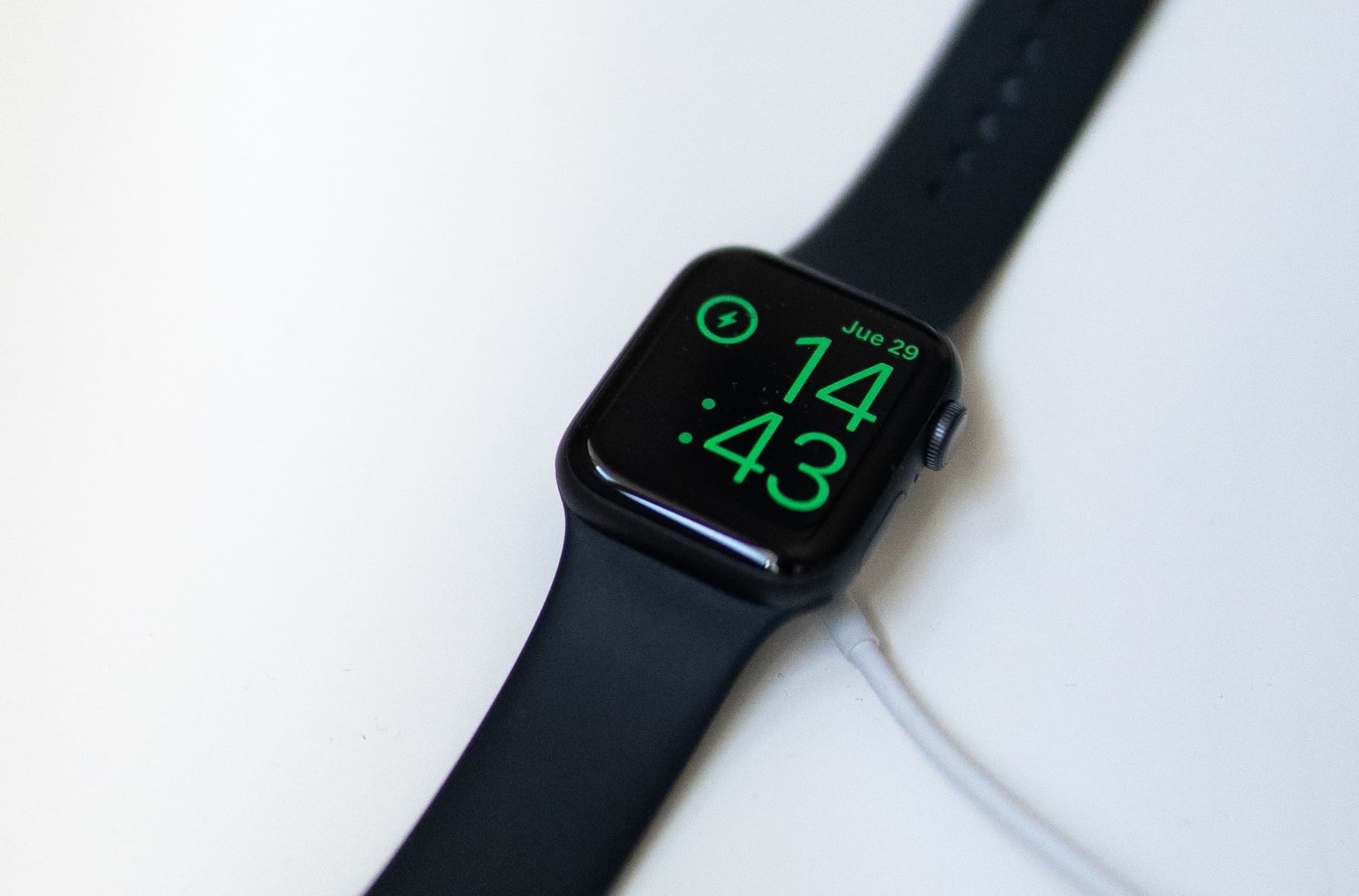
Put your Apple Watch to charge

The Apple Watch doesn’t need to be on its charger to download songs directly from Apple Music or via your iPhone. However, the watch must be charging to automatically download all your recent music (or recommendations) and pinned items.
Add music to watch from iPhone
If you can’t download Apple Music tracks directly to your watch or find it inconvenient to navigate through playlists, albums, and artists on the small screen, just use the iPhone Watch app instead.
- Ensure your Apple Watch and iPhone are nearby and connected.
- Go to the iOS Watch app > My Watch > Music.
- Tap Add Music, go to a playlist, artist, or album, and tap the add icon at the top. Soon, the song(s) will be downloaded to your Apple Watch, even if it isn’t charging.

Delete and reinstall the Music app
A while back, the Music app on my Apple Watch wouldn’t work or show anything meaningful. And this was right after setting up the new watch! Finally, the only thing that helped was deleting the Music app on the companion iPhone and installing it again. I’ve explained how to do this here: fix the Music app not working on new or old Apple Watch.

Erase your Apple Watch and pair it again
And finally, if you still can’t download Apple Music songs on your Apple Watch, unpair it from your iPhone, which will also erase it. Then, set it up again.
You can also consider using Spotify, YouTube Music, or other streaming apps on your Apple Watch, provided you have their premium subscription, as most services don’t allow offline downloading on the free plan.
Which solution worked for you?
Source link: https://www.idownloadblog.com/2025/09/26/fix-songs-not-downloading-watch/